How to Download Instagram Reels, Videos & Photos (2026)
Last reviewed: October 17, 2026
Short answer: To download Instagram Reels, videos and photos, open the post, tap the three dots (⋯) or the share arrow, choose Copy link, paste the link into a web-based Instagram downloader and save the file. Videos come out as MP4; photo posts give you the image. It is free, needs no registration and works in any browser. Only public posts work: private accounts and Stories need a logged-in session, which no honest website can use on your behalf.
Download freely for offline viewing, reference or backups of your own posts. If a reel belongs to someone else, ask before you repost it anywhere.
Knowing how to download Instagram Reels, videos and photos properly saves a surprising amount of hassle. Instagram is built for scrolling, not saving. The bookmark icon only keeps a post inside the app, screenshots crop and compress, and screen recordings pick up notifications, the progress bar and every tap you make. When you actually need the file, for a presentation, an edit, a backup or just to watch on a flight, you need a cleaner way.
The simplest route is a browser tool. Paste the link into our free Instagram video downloader and the MP4 saves straight to your device: no app, no extension and no account. That covers the easy cases. This guide also covers the rest: what Instagram lets you download by itself, what is impossible by design, where your phone hides the file, why a link sometimes fails, and what the law and Instagram's rules say about reusing other people's posts.
By the end you will know:
- Which kinds of Instagram content can be downloaded, and which cannot.
- The exact steps for Reels, feed videos, IGTV and photo posts.
- Where the file lands on Android, iPhone, Windows and Mac.
- How Instagram's own Reels download button compares, and when to use it.
- What to do when a download fails.
- How to back up your own account properly, and how to reuse content without getting into trouble.
In this guide
- What you can and cannot download from Instagram
- How to download Instagram Reels and videos, step by step
- How to download Instagram photos and carousel posts
- Where the file goes on Android, iPhone, Windows and Mac
- Instagram's own Reels download option
- Why an Instagram download fails, and how to fix it
- Quality and format notes
- Saving the audio from a reel
- Backing up your own Instagram account
- Is it legal to download Instagram videos and photos?
- How to spot an unsafe Instagram downloader
- Practical workflows for creators, small businesses and teachers
- Quick tips
- FAQ
- Bottom line
What you can and cannot download from Instagram
Before you copy a single link, it helps to know where the line is. A web downloader can only fetch what Instagram shows to anyone on the internet without logging in. That one rule explains almost every "why doesn't this work?" question.
| Content type | Can a web tool download it? | Why |
|---|---|---|
| Reels from public accounts | Yes | Public reels are visible to anyone with the link. |
| Feed videos from public accounts | Yes | Same as reels: the post is public. |
| IGTV videos (older long videos) | Yes, if public | They are now shown as regular video posts. |
| Single photo posts | Yes, if public | The tool returns the image when the post has no video. |
| Anything from a private account | No | Only approved followers can see it, so there is no public file. |
| Stories and Highlights | No | Instagram only serves them to logged-in users. |
| Live broadcasts | No | A live stream is not a post until it is shared as a replay. |
| Direct messages | No | Messages are private by definition. |
If a site promises to download Stories anonymously or to show you a private profile, it is either using someone's login behind the scenes, asking for yours, or simply lying to collect clicks. None of those are things you want near your account.
How to tell in ten seconds whether a post is public
You do not need to guess. There are two quick checks, and either one settles it before you waste time on a link that will never work.
- Look at the profile. In the app, a private account shows a lock icon and the message "This account is private" in place of the grid of posts, unless you already follow it. If you follow a private account, you can see its posts, but a downloader still cannot, because it is not logged in as you.
- Open the link in a private browser window. Copy the post link, open an incognito or private window, and paste it. If the post plays or displays without asking you to log in, it is public and a downloader can fetch it. If Instagram shows a login wall instead of the post, it cannot.
The second check is the more reliable of the two, because it shows you exactly what any website sees. It also catches the less obvious cases: posts limited by age, posts restricted in certain countries, and posts that were archived after the link was shared. Instagram sometimes shows a login prompt after you scroll for a while even on public pages; that is different. What matters is whether the post itself appears before the prompt.
How to download Instagram Reels and videos, step by step
The process is the same for Reels, feed videos and IGTV: copy the post link, paste it into the downloader, and save the MP4. Here is each step in detail.
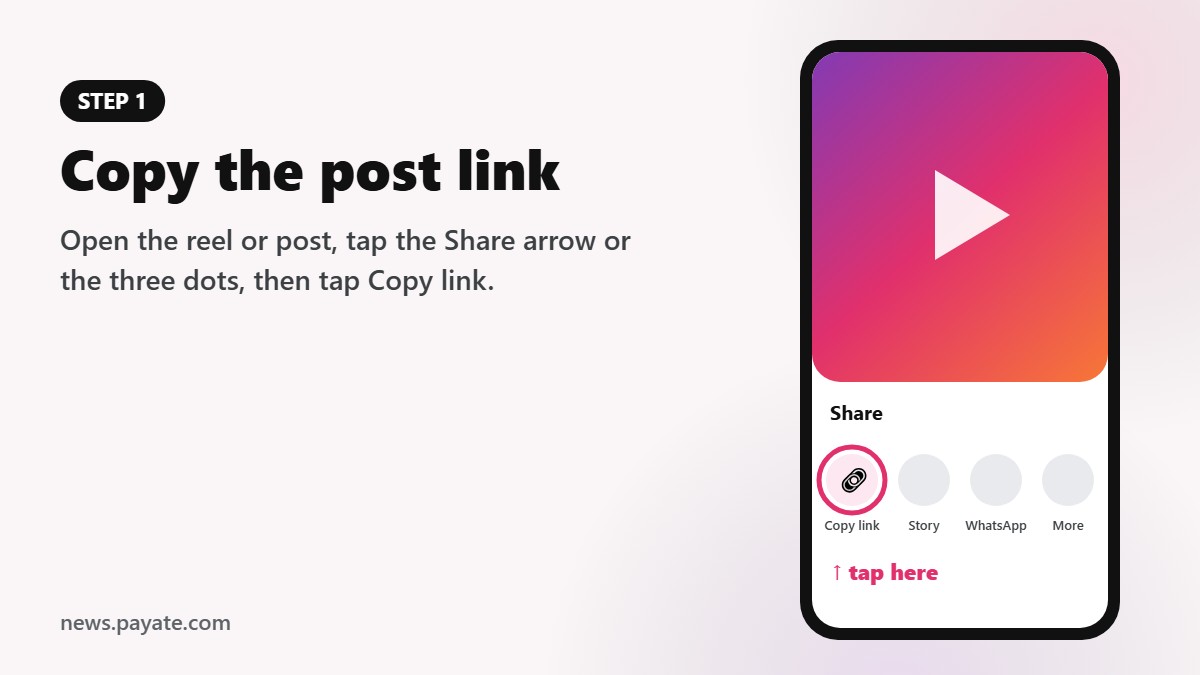
- Copy the link to the post. In the Instagram app, open the reel or video. Tap the paper-plane Share icon and choose Copy link, or tap the three dots (⋯) and choose Copy link or Link. On a computer, open the post on instagram.com and copy the address from the browser bar. A post link looks like
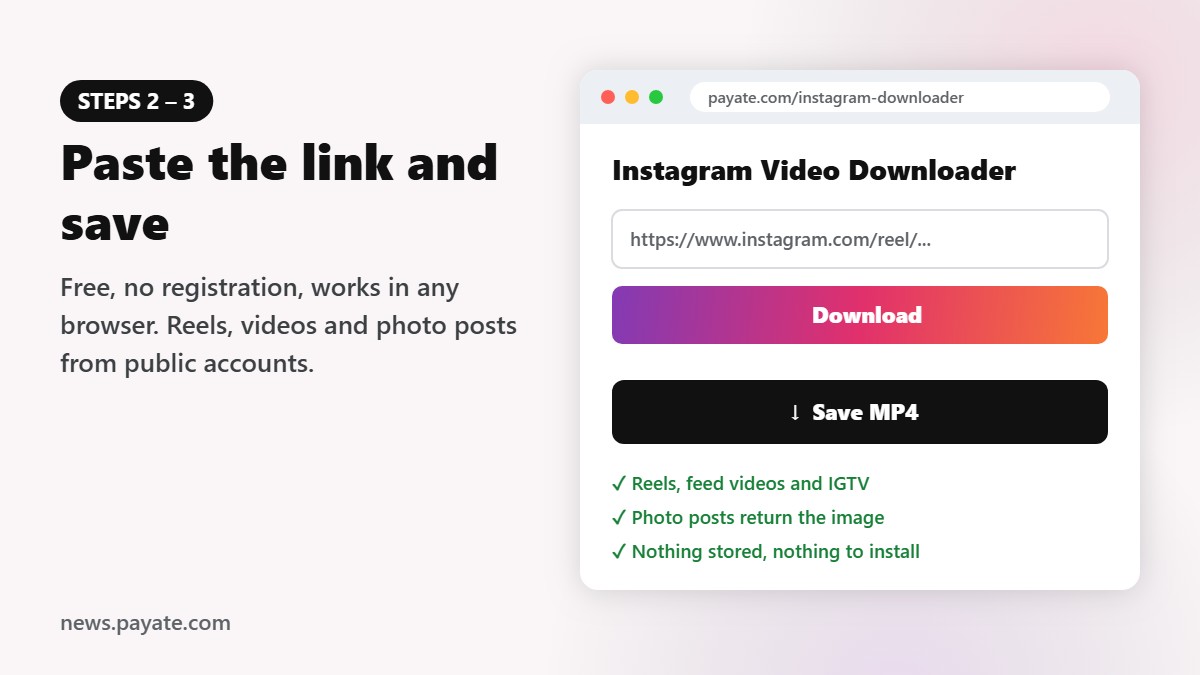
instagram.com/p/...and a reel link likeinstagram.com/reel/.... - Open the downloader in any browser. Go to the PAYATE Instagram Reels downloader in Chrome, Safari, Firefox, Edge or Samsung Internet. There is nothing to install and nothing to sign in to.
- Paste the link and press Download. Long-press the box and choose Paste on a phone, or press Ctrl+V on Windows (Cmd+V on a Mac). Press Download. The link is fetched in real time, so give it a few seconds.
- Save the MP4. Tap the download button that appears. The video saves to your device in the same quality Instagram streams in the app.
- Play it once to check. Open the file and watch a few seconds. If anything looks wrong, the troubleshooting table below covers the usual causes.
That is all there is to it for most posts. If you save Instagram videos often, add the downloader to your phone's home screen: in Safari or Chrome, open the share menu and choose Add to Home Screen. It then opens with one tap, like an app, without taking up space like one.
A faster habit for links
When a friend sends you a reel in Instagram Direct or WhatsApp, the link often comes wrapped in extra text or tracking parameters. The downloader usually copes, but the cleanest approach is to open the reel in Instagram, then use Share → Copy link yourself. You always get a tidy link that points to exactly one post.
How to download Instagram photos and carousel posts
Photos work the same way as videos. Copy the link of a public photo post, paste it into the downloader and press Download. When a post has no video, the tool returns the image instead of an MP4, and you save it like any picture on the web.
A few practical points:
- On a phone, long-press the image that appears and choose Download image (Android) or Save to Photos (iPhone) if the browser opens it instead of downloading it.
- On a computer, right-click the image and choose Save image as to pick the folder and file name yourself.
- Carousel posts (several photos or videos in one post) behave differently from single posts. If a carousel contains a video, you will typically get the video. If you need one particular photo from a carousel and the result is not the one you want, the honest fallback is to ask the person who posted it for the original, especially if it is going into anything public.
Why not just take a screenshot? You can, and for a quick reference it is fine. But a screenshot includes the status bar, can be cropped by the app's interface, and is saved at your screen's resolution rather than the image Instagram actually stores. For anything you plan to print, edit or share, a proper download is cleaner.
Where the file goes on Android, iPhone, Windows and Mac
The download itself is the easy part. Finding the file afterwards is where most people get stuck, especially on iPhone. Here is what to expect on each system.
Android
Chrome saves the MP4 to the Download folder in internal storage and shows a small bar at the bottom of the screen when it finishes; tap Open to play it. Google Photos does not always show downloads in the main timeline. Open Library and look under Photos on device for the Download folder. To make the video appear with your camera clips, move it into DCIM/Camera with the Files app.
Samsung Internet works the same way and saves to the same Download folder. Samsung's Gallery app usually shows downloaded videos in an album called Download.
iPhone and iPad
Safari asks for confirmation before any download. Tap Download, then tap the small arrow in the address bar to watch progress. The file goes to the Files app, not to Photos. To move it:
- Open Files and go to Downloads (On My iPhone or iCloud Drive, depending on your settings).
- Tap the video to open it.
- Tap the Share button.
- Choose Save Video. It now appears in Photos.
For photos, the same Share sheet shows Save Image. You can choose where Safari keeps downloads under Settings → Apps → Safari → Downloads (on older versions, Settings → Safari → Downloads). Picking On My iPhone stops large videos from filling your iCloud storage.
Windows
Chrome, Edge and Firefox save to This PC → Downloads. Press Ctrl+J to open the download list and click Show in folder. The built-in Media Player opens most Instagram MP4 files. If a clip ever plays sound with a black picture, install the free VLC media player, which includes its own decoders and plays practically anything.
Mac
Safari, Chrome and Firefox all use the Downloads folder by default. QuickTime Player opens the file directly, and you can drag it straight into iMovie, Final Cut Pro or Keynote.
| Device | Recommended browser | Where the file lands | Extra step |
|---|---|---|---|
| Android | Chrome or Samsung Internet | Internal storage → Download | Optional: move to DCIM/Camera |
| iPhone / iPad | Safari | Files → Downloads | Share → Save Video or Save Image |
| Windows | Chrome, Edge or Firefox | Downloads folder | Use VLC if a clip will not play |
| Mac | Safari or Chrome | Downloads folder | Usually none |
Instagram's own Reels download option
Instagram has added its own way to save some reels. On public reels from public accounts, the Share menu may include a Download option. It saves the reel to your phone's camera roll with an Instagram watermark showing the creator's username.
It is worth using when it is available and the watermark does not bother you. It credits the creator automatically, and it never leaves the app. It falls short in a few situations:
- The option is missing. Creators can turn off downloads of their reels, and the button only appears on reels from public accounts. Availability has also varied by region and app version.
- You want a clean file. If you are reposting your own reel to TikTok or YouTube Shorts, a watermark from another platform is not ideal.
- You are on a computer. The in-app option is built for phones.
- It is a feed video, not a reel. The built-in option is aimed at reels.
One thing to respect: if a creator has switched off downloads for their reels, they have made their wishes clear. A web tool may still be able to fetch a public reel, but if you need it for anything beyond private viewing, send the creator a message and ask. A short, polite request with a promise of credit usually gets a yes.
The bookmark is not a download
Tapping the bookmark icon saves a post to your Saved collection inside Instagram. It is handy for finding things later, but it is only a pointer. If the owner deletes the post, archives it or makes their account private, it disappears from your collection. If you need to keep something, save the file.
Why an Instagram download fails, and how to fix it
Most failures come from the link or from the post's visibility. Check these causes before trying again.
| What you see | Likely cause | Fix |
|---|---|---|
| "Not found" or no result | The account is private, or the post was deleted or archived | Open the link in a private browser window. If Instagram asks you to log in to see the post, it cannot be downloaded. |
| Link not recognized | You copied a profile link, a Story link or extra text | Copy the link from the post itself with Share → Copy link. Remove any words around it. |
| You get an image instead of a video | The post is a photo, or the video is inside a carousel | Check the post type in the app; for a specific carousel item, ask the poster for the original. |
| Story link does not work | Stories require login | Not possible with a web tool. If it is your own Story, use your Story archive in the app. |
| Works on Wi-Fi but not mobile data | Connection drop or data saver blocking downloads | Retry on Wi-Fi or turn off data saver in the browser for a moment. |
| Age-restricted or region-limited post | Instagram hides it from logged-out visitors | There is no clean way around this; the post is not fully public. |
| Download finishes but will not play | The file did not complete, or your player lacks a decoder | Download again; play it in VLC. |
If the post is public and the link is correct, wait a minute and try once more. Instagram sometimes slows down requests during busy periods, and a second attempt usually works.
Quality and format notes
Instagram serves a single MP4 source for a reel or video, and that is what you download: the same file the app streams to viewers. There is no HD or SD switch to think about, and no extra compression added by the tool.
What resolution to expect
Reels are vertical with a 9:16 shape. Instagram recommends uploading reels at 1080 x 1920 pixels, so well-made reels usually come out at or near that size. Feed videos can be square, vertical (4:5) or horizontal. Photos are typically stored at up to 1080 pixels wide, which is plenty for phones and social posts but not ideal for printing large.
A downloader cannot make a post sharper than the version Instagram keeps. If the uploader filmed in poor light or Instagram compressed a fast-moving clip heavily, that is what you get. For anything important, such as a print, a paid ad or a TV screen, ask the creator for the original file. Their camera roll almost always holds a better version.
File size
A reel of 30 to 60 seconds usually weighs a few megabytes up to the low tens of megabytes, depending on length and motion. Long feed videos can be much larger. If you are on a limited data plan, download on Wi-Fi.
Playback and editing
MP4 is the most widely supported video format there is. Phones, Windows, Mac, PowerPoint, Keynote, Google Slides (via Drive), CapCut, Premiere Pro, DaVinci Resolve and iMovie all accept it. If an older program refuses a file, convert it to H.264 MP4 with the free HandBrake app and try again.
| Post type | What you get | Typical shape | Good for |
|---|---|---|---|
| Reel | MP4 video | 9:16 vertical | Phones, Shorts, presentations |
| Feed video | MP4 video | 1:1, 4:5 or 16:9 | Slides, websites, editing |
| IGTV (older) | MP4 video | Usually vertical | Longer offline viewing |
| Photo post | Image | 1:1, 4:5 or 1.91:1 | Mood boards, references |
Saving the audio from a reel
Sometimes the sound is what you are after: a voiceover, a podcast clip or a trending audio. You have a few options.
- Inside Instagram: tap the audio name at the bottom of a reel to open its audio page, then tap Save audio. It goes to your Saved audio list so you can use it in your own reels. Nothing is downloaded to your device.
- From the MP4 on a computer: open the video in VLC, choose Media → Convert / Save, and pick an audio profile such as MP3. Audacity can also import many video files and export only the sound.
- On a phone: editors like CapCut can extract the audio from a video clip and reuse it in a new project.
Be careful with music. Commercial tracks on Instagram are licensed for use on Instagram. Taking a song out and posting it on another platform, or using it in an ad, needs permission from the rights holder. Original voiceovers belong to the person who recorded them.
Backing up your own Instagram account
If you are a creator or run a business account, a downloader is great for grabbing one or two of your own reels quickly. For a full backup, use Instagram's official export instead.
- In the Instagram app, go to your profile, tap the menu and open Accounts Center.
- Choose Your information and permissions, then Download your information.
- Pick the account, choose whether you want everything or only some types of information, and select the format, date range and media quality.
- Submit the request. Meta prepares the file and sends a notification or email when it is ready to download.
The export can take a while and comes as one large archive, but it includes your photos, videos, captions and more, which is exactly what you want from a backup. Do it a few times a year and keep the archive on an external drive or cloud storage you control.
Between full backups, a simple habit helps: when a reel you made does well, download it the same day and store it in a folder named by month. When a brand or client asks for examples of your work, you have them ready.
Is it legal to download Instagram videos and photos?
Downloading a public post to watch privately is generally low risk. What you do with it afterwards is where the legal and practical questions start. This is general information, not legal advice, and the rules vary by country.
The creator owns the copyright
The person who filmed a reel or took a photo owns the copyright. By posting on Instagram they give Instagram a license to display it, not you. Keeping a copy for yourself, to watch offline or as inspiration, is the kind of personal use few people object to. Posting the same reel to your own account, using a photo on your website, or putting a clip in an ad is publishing someone else's work. The owner can ask the platform to take it down, and in some cases claim damages.
Exceptions are narrow
In the United States, fair use can cover short excerpts for commentary, criticism, teaching or news. The UK and many other countries have narrower exceptions for criticism, review, quotation and education. These are decided case by case. A few seconds used to comment on a trend is very different from re-uploading the whole video with a new caption.
Instagram's rules
Instagram's terms and Community Guidelines say to share only content you created or have the right to share. Accounts that repeatedly post other people's content without permission can be reported for intellectual property violations, and Instagram has said it prioritizes original content in recommendations over reposts. In short, reposting is a weak growth strategy as well as a legal risk.
A practical rule of thumb
| What you want to do | Generally okay? | What to do |
|---|---|---|
| Download your own reels and photos | Yes | Go ahead; it is your work. |
| Save a public reel to watch offline | Usually fine for private use | Keep it to yourself. |
| Use a short clip in a class or a review | Often covered by education or commentary exceptions | Use only what you need and credit the creator. |
| Repost someone's reel on your account | No, without permission | Ask first, credit clearly, or use Instagram's Remix or share features instead. |
| Use a photo or clip in an ad, product page or paid campaign | No, without a license | Get written permission, ideally with usage terms and payment. |
Instagram's own share tools are often the better answer anyway. Sharing a reel to your Story or using Remix keeps the original creator attached and stays within the platform's rules.
How to spot an unsafe Instagram downloader
Instagram downloaders are a popular search, and that attracts low-quality sites. A good one is simple and asks for nothing. A bad one tries to get something from you.
Signs of a trustworthy tool:
- It runs in the browser and is free.
- It never asks for your Instagram username or password, or for a "login with Facebook".
- One input box, one Download button, and a clear note that only public posts work.
- It says plainly that it does not store your links or files.
Warning signs:
- Promises to download private profiles or view Stories anonymously.
- Requests for your Instagram login. Never enter it on a third-party site; that is how accounts get hijacked.
- Pushy pop-ups asking to allow notifications, or to install an APK or a "profile".
- Many fake Download buttons that lead to ads.
If you have ever typed your Instagram password into a site like that, change it now, turn on two-factor authentication in Accounts Center, and review the devices logged in to your account. The same clean-up steps apply to any messaging or social app, as our guide to recovering a hacked WhatsApp account explains for WhatsApp.
Practical workflows for creators, small businesses and teachers
Saving one video is easy. Doing it repeatedly, in an organized way, is where you save real time.
Creators posting on several platforms
If you edit inside Instagram, using its text, stickers, transitions and audio, your finished reel exists only on Instagram. Download it right after posting and you have a copy to upload to YouTube Shorts or TikTok. Re-check text placement before you post elsewhere, because each app covers a different part of the screen with buttons and captions. If you post on TikTok too, our guide on downloading TikTok videos without watermark covers the reverse direction.
Small businesses
Many shops run their whole marketing on Instagram and never keep copies. Download your best product reels and photos and store them in a shared folder with the date and product name in the file name, for example 2026-10_summer-dress-reel.mp4. You can then reuse them on your website, in WhatsApp catalogs, in email newsletters and in ads, all of which you own the rights to.
When customers tag you in videos of your products, that content belongs to them. If you want to use it on your website or in ads, ask for permission in writing. A simple direct message that says how you will use the video, and a clear yes in reply, is a good minimum.
Teachers and trainers
Instagram is full of short explainers, demonstrations and recipes that work well in class. School networks often block social media, so download the clips the day before and keep them in your lesson folder. Add the creator's handle on the slide. It is good practice and helps students learn how to credit online sources.
Anyone who works across platforms
The same copy-paste-save flow works on other sites too. If you also save clips from YouTube, Facebook, X or Pinterest, the collection of free video downloaders for every platform keeps everything in one place, so you do not need a separate app for each network.
Quick tips
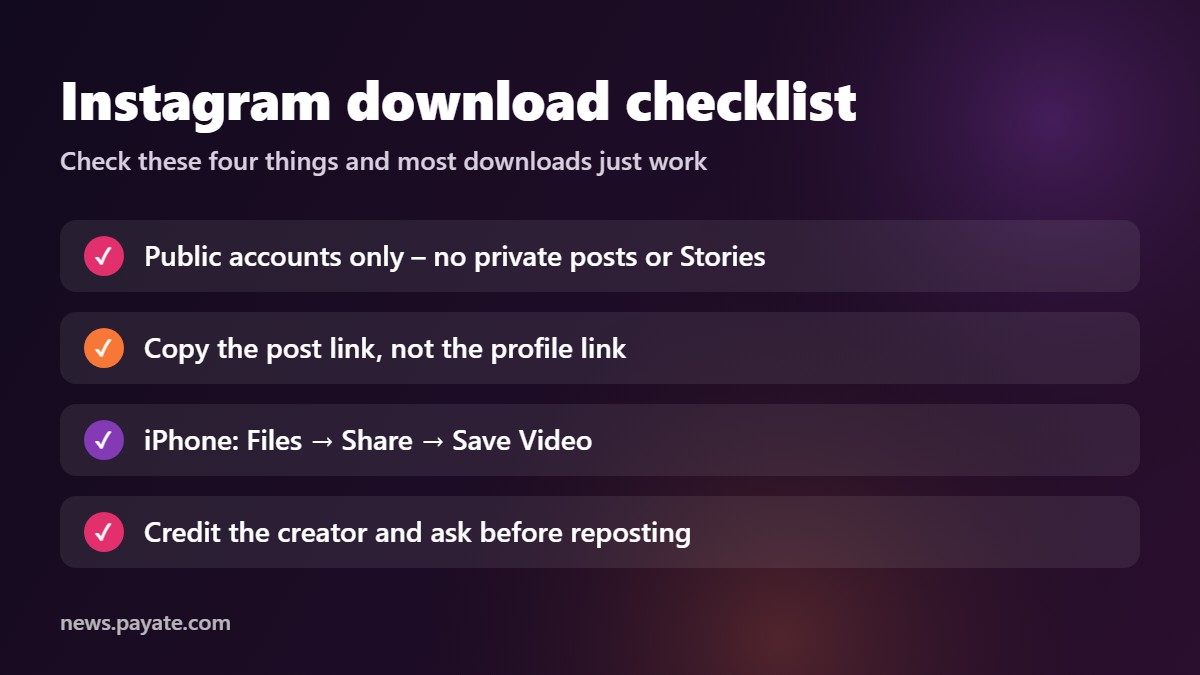
- Copy the post link, not the profile link. A profile link does not point to a single file.
- Test visibility in a private window. If Instagram asks you to log in to see the post, it cannot be downloaded.
- Use Safari on iPhone and move the file from Files to Photos with Share → Save Video.
- Do not rely on the bookmark. Saved posts vanish if the owner deletes or hides them.
- Download your own reels on the day you post them and name files by date and topic.
- Use the official export for full account backups.
- Never log in to a downloader. No legitimate tool needs your password.
- Ask before you repost, and credit the creator every time a clip leaves your device.
FAQ
How do I download Instagram Reels for free?
Open the reel, tap Share and choose Copy link, paste it into a free web downloader and press Download. The MP4 saves to your device. The PAYATE tool is free, needs no registration and works in any browser.
Can I download Instagram photos as well as videos?
Yes. Paste the link of a public photo post; when there is no video in the post, the tool returns the image. Save it with Download image, Save to Photos or Save image as.
Can I download Instagram Stories or Highlights?
Not with a web tool. Instagram only shows Stories to logged-in users, so they are not public files. For your own Stories, use the Story archive in the app or the official data export.
Can I download videos from a private Instagram account?
No. Private posts are visible only to approved followers. Any site claiming otherwise is unsafe or misleading.
Does the downloaded reel have a watermark?
The web downloader saves the MP4 that Instagram streams, without the username watermark that the in-app Download option adds. Anything the creator put in the video itself, such as text or stickers, stays.
Does Instagram notify someone when I download their post?
Downloading through a web tool does not send the owner a notification. Shares made inside the app may show up in the owner's insights. If you plan to use the content publicly, contact the owner anyway.
Why do I only get one item from a carousel?
Carousels hold several photos or videos in one post, and a downloader may return only one of them, typically the video. If you need a specific slide for something public, ask the poster for the original file.
What quality will the video be?
The same quality Instagram streams in the app, delivered as a single MP4 source. Well-made reels are usually close to 1080 x 1920. The tool cannot improve on what Instagram stores.
Is it legal to download Instagram videos?
Downloading public posts for private viewing is generally low risk, and downloading your own content is always fine. Reposting or using someone else's content commercially without permission can break copyright law and Instagram's rules. This is general information, not legal advice.
Is my data safe with the downloader?
The PAYATE Instagram downloader fetches the link in real time and does not store your files. You never enter a password or personal details.
Bottom line
To download Instagram Reels, videos and photos, copy the post link, paste it into a browser downloader and save the file. The things that trip people up are predictable: private accounts and Stories cannot be downloaded, iPhones put files in the Files app first, and carousels may not give you every slide. Now you know how to handle each one.
Use what you save responsibly. Back up your own work often, keep other people's posts for private use, and ask before you repost. Creators notice and appreciate it, and your own account stays in good standing.
Ready to try it? Open the free Instagram downloader, paste a link and save your first reel. It is free, needs no registration and works in any browser on your phone or computer.